Mark Lorenz on Technology

Friday, March 03, 2006

MagicDraw tips for modelers

One of the best, if not the best object-oriented modeling tools IMO is MagicDraw. I have used multiple modeling tools over the years, including Visio (yes, Visio), Rational Rose, Embarcadero Describe, Paradigm Plus, and Omondo. By far, the best one I've used is MagicDraw from No Magic.

I've used MagicDraw for a couple of years now (from v8.x to v10.5 currently) and certainly learned some things along the way. This post is my attempt to share these lessons learned so others can bypass some pain along the learning curve.
Please contribute to this post if you have tips to share!

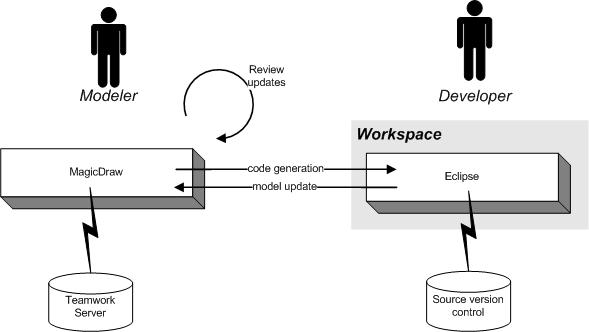
MagicDraw has a lot of power and different ways to use it. I have mostly used it as an Eclipse plugin (see diagram), but occasionally used it as a standalone product due to some plugin restrictions. I have also used it remotely (what they call "offline" - meaning not connected to the Teamwork Server that is the repository of modeling artifacts).
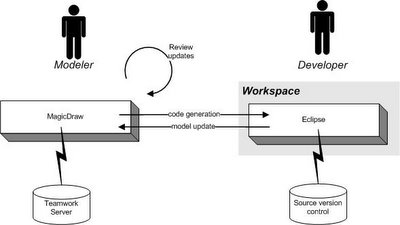


MagicDraw supports all the UML 2.0 diagrams, roundtrip engineering, sharing artifacts between modelers, and a lot more. See their site for all the details.

I've tried to organize the tips by categories, hopefully making it easier to find items of interest and skip those that may not apply to your situation. So, without further ado, here are my lessons learned:

General

  • Change your settings so that Operations do not show stereotypes or properties
Thanks to Patty Sullivan for this tip.
The default shows too much information IMO, cluttering up the diagrams. To simplify this, select Options/Project. In the resulting dialog, expand Symbols and then Shapes and select Class. Next, on the righthand side under Operations, change the Show Operations Stereotype and Show Operations Properties checkboxes to false. Select the Apply button to change your existing artifacts. Select OK to close the dialog.

Class Diagrams

  • Name the ends of your associations
If you do not, the resulting code will have variables declared as "_unnamed".
  • Set the ends of your associations to the correct type for a "many" cardinality
Otherwise, you will get the type declared in the resulting code instead of a Collection subtype. Open the specification of the association attribute, select Language Properties, then under your language (e.g. Java), pick the proper type for the Container.
  • Enter assertions as commentary on your classes and methods
This allows you to use tools like CodePro to create more meaningful JUnit test cases automatically. Check out my posts on TDD and CodePro.

Interaction Diagrams

  • Reverse engineer sequence diagrams from existing code
Enterprise edition only
Thanks to Patty Sullivan for this tip
If you have existing code, rather than create sequence diagrams Select Tools/Model Visualizer. In the resulting dialog, select the sequence diagram option and continue with the wizard from there to specify the details for your particular design.

Using MagicDraw as an Eclipse plugin

  • Increase startup resources
If you don't, you may run out of heap space, which is never a good thing. Here is what I've been using to start Eclipse (adjust to fit your situation):
C:\eclipse\eclipse.exe -vmargs -Xms256m -Xmx1024m -XX:MaxPermSize=128M
  • Use the standalone MagicDraw to generate reports
This is a bug as of the 10.5 release. It may have been fixed.
Report generation from the plugin does not work!
  • Watch for duplicate methods and variables
When you edit source in Eclipse (or WSAD or RAD), MagicDraw can't always tell whether you are replacing a method or variable or creating a new one. Even if you use refactoring to make changes, that doesn't cross the MagicDraw-Eclipse boundary. Similarly, if you make changes in MagicDraw, you may not end up with exactly what you want on the Eclipse side. So, depending on how you work and what settings you have for your Integration options, you can end up with artifacts that need to be cleaned up.

Miscellaneous

  • Use offline to take your model on the road
Thanks to Donatas Simkunas for this tip.
In order to work offline, the first thing you must select Options/Environment, then Floating and set "Auto login to floating license server" to false. This will take effect the next time you start your MagicDraw client. You will be offered an auto login option via a dialog at startup - do not check that option or you will not be able choose to work offline (this is also how you pick the type of license you want to use if you have more than one type).

When starting MagicDraw, you will get a dialog to choose which license you want to use (this is the second dialog - the first one is the license server login). Also on this dialog is the choice of "offline" or "online". You will choose offline. This allows you to work without a connection to the license or teamwork servers for a certain period of time.
Note: The period of time is set by default to 24 hours. You can change this setting by editing the Offline Session Time value on the Users tab of the Administrator's Console.

Note: The only artifacts that you will be able to change in offline mode are ones you have created without committing them to the Teamwork Server and ones that you have specifically locked for editing. This is done via a menu action and causes your login ID to appear next to the artifacts in the Containment Tree.
When you are done working offline, you should choose Help/Finish Floating License Session. Make sure you have visibility to the Teamwork Server as this will reconnect you. If you exceed the time for working offline, you will not be able to start your MagicDraw license until you have access to the MagicDraw server.
  • Adjust server settings
Thanks to Vilma Lukoseviciene for this tip
There is no way to tell the MagicDraw server that a particular client is logged off, such as when a client system has crashed. However, you can change the duration of time that it takes for the connection to time out, thereby dropping the user and freeing the license.

To do this, you should login to the Teamwork Administrator's Console and change
(decrease) the values for the muserver.ping.time and muserver.ping.timeout.time
in the Properties tab. After changing these properties you need to restart the Teamwork Server.

The muserver.ping.time is the time interval for the Teamwork Server to ping clients. After sending a ping, the server waits for an answer from the client. If an answer is not received during the muserver.ping.timeout.time interval, the user is logged out (and can therefore log back in).

Unsupported Functionality

No tool has everything. Here are some features that I'd like to have, but MagicDraw does not currently (v10.5) support:
  • More support for refactoring
E.g. I've wanted to be able to change a class into an interface or vice versa. You can't. You have to create the one you want yourself, but MagicDraw does make it easy to move methods, variables, and relationships (just DnD).
  • Sorting of methods within the class properties dialog does not work
This is a known bug and may be fixed when you read this. If it doesn't, it's not something you're doing wrong.
  • Using MagicDraw with AndroMDA doesn't work for MagicDraw 10.x
This used to work, but currently (as of 10.5) this no longer works. So, use MagicDraw 9.x if you want to use AndroMDA. If you've already got a MagicDraw 10.x project, you are out of luck - MagicDraw is not backwards compatible. Again, this may have been fixed, so check it out.

Troubleshooting

When things go wrong, you are going to want to send your md.log file in your MagicDraw home directory (you can edit this down to smaller size if it's getting large) as well as screen snapshots and/or code as appropriate. Here are some known problems and why they might occur:
Symptom: Classes you know exist are not available.
Possible reason: Depending on the template you chose when you created a project, different classes will be available. Not to worry if some you need are missing - select File/Import and browse to the templates directory and import the file(s) you need (e.g. java.util.xml.zip for Java 1.4.2 classes).

Thanks to Patty Sullivan for this tip.
Symptom: Existing classes fail when attempting to reverse engineer.
Possible reason: The Java version may not be correct for the code. E.g. Parsing works differently using Java 1.5 or 1.4 as the target. Use Options/Project/Code Engineering/Java to change the target version.

Thanks to Patty Sullivan for this tip.
Symptom: You cannot edit a class, method, association, ...
Possible reason: You may not have everything involved locked for edit. E.g. to edit an association, you must lock the association and the elements at both ends.
Symptom: Names of transitions on state diagrams do not appear on the diagram.
Possible reason: You have to specify the names as the trigger and choose SignalEvent as the type to get the names to appear.
Thanks to Nerijus Jankevicius for this tip.
Symptom: When trying to login, a dialog says you are already logged in.
Possible reason: You probably just crashed your client for some reason. MagicDraw license server is supposed to free up your license after a timeout period. It doesn't always work. The only way I know to get back in is to stop and restart the MagicDraw server.

Resources

Labels: , , , , , , , ,


| 1 comments

Thursday, February 23, 2006

Generate meaningful unit tests quickly & easily

Last time, I introduced the topics of TDD and DBC. These techniques lead you to:
  • define what it is you are trying to build,
  • create test cases to see if you are building what is required (and no more), and
  • iteratively and incrementally verify that the code you are writing is correct.
Never fear - I wouldn't expect you to do all this without any help. Awhile back, I checked out multiple tools to help with this effort. The one I chose as the best for this situation was Instantiation's CodePro.

Note: CodePro can create test cases for existing code too! It does a great job of testing based on your current design. It parses the code as well as actually running it to examine the behavior of your system. So, these techniques can be used with new or existing efforts.

CodePro works with Eclipse and uses JUnit. Both of these are free. For more information about JUnit, I recommend JUnit Recipes by Rainsberger.

UML Model

We are going to go through a relatively simple example of how to use CodePro to generate meaningful test cases for your designs. The package we are going to target is the event package, as shown in this Unified Modeling Language class diagram:

Note: if you don't know UML, I recommend Applying UML and Patterns by Larman and UML Distilled by Fowler. This diagram was created using MagicDraw, which is an excellent product.

I have noted the classes and methods that I will show assertions for:
  • Loggable
    The ability to take part in a SystemEvent.
    @invariant (getEventString() != null && getEventString().length() > 0)
    @invariant (getEvents() != null)
  • Loggable.add()
    Add anEvent to my events. Throw an Exception if anEvent is not one of my
    validEventTypes.
    @throws Exception
    @post (getEvents().contains(anEvent))
  • UpdateEvent()
    Constructor
    @throws Exception
    @pre target instanceof Loggable
    @pre EventType.contains( type )
    @pre attributeName != null && attributeName.length() > 0
    @pre oldValue != newValue
  • SystemEvent.getType()
    @return a String to uniquely indicate my type
    @post ($ret == type)
Note that Loggable is an interface. CodePro is smart enough to use the concrete implementors to test the assertions for Loggable!

In some complex portions of the design, CodePro cannot figure out how to create valid instances for the test fixtures. In this case, you can provide a <className>Factory class in the <projectName>Test project with static methods that return valid instances. You find these situations when you encounter a NullPointerException when running a test case and the test fixture has null(s) in its logic.

Process

The process we will follow looks like this:


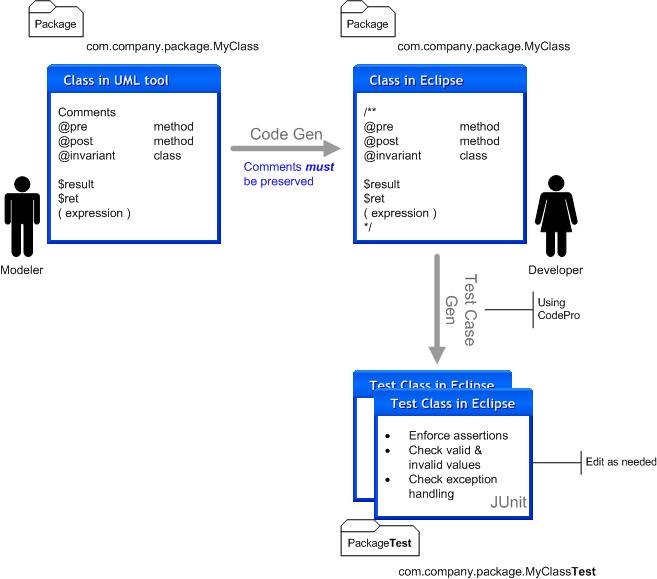
Assertions are entered into our modeling tool, such as MagicDraw, as comments on the classes (for invariants) and methods (for pre and post conditions). These are carried over to our IDE (Eclipse in this case) as JavaDocs. The assertions can be edited or entered in the IDE as needed, with roundtrip engineering updating our model.

The generated test cases
We then use CodePro to generate test cases from our Java code. Here's some of what we'd get for LoggableTest:
    /**
* Return an instance of the class being tested.
* @return an instance of the class being tested
* @see Loggable
* @generatedBy CodePro at 1/18/06 1:33 PM
*/
public Loggable getFixture7()
throws Exception
{
if (fixture7 == null) {
fixture7 = new TestOrder(...);
}
return fixture7;
}
    /**
* Return an instance of the class being tested.
* @return an instance of the class being tested
* @see Loggable
* @generatedBy CodePro at 1/18/06 1:33 PM
*/
public Loggable getFixture8()
throws Exception
{
if (fixture8 == null) {
fixture8 = new Specimen( SpecimenNumberFactory.sampleSpecimenNumber(), new PatientRole(PersonFactory.heathcliffPeterman()...);
}
return fixture8;
}

/**
* Run the void add(SystemEvent) method test.
*
* @targetAssertion @post (getEvents().contains(anEvent))
* @targetAssertion @invariant (getEvents() != null)
* @targetAssertion @invariant (getEventString() != null && getEventString().length() > 0)
* @generatedBy CodePro at 2/24/06 10:57 AM
*/
public void testAdd_fixture28_5() throws Exception {
Loggable fixture = getFixture28();
SystemEvent anEvent = new UpdateEvent("Anäßt-1.0.txt", (Loggable) null, "Anäßt-1.0.txt", "Anäßt-1.0.txt", "Anäßt-1.0.txt");
fixture.add(anEvent);
// add test code here
assertTrue(fixture.getEvents().contains(anEvent));
assertTrue(fixture.getEvents() != null);
assertTrue(fixture.getEventString() != null && fixture.getEventString().length() > 0);
}
Note that both concrete implementors of Loggable (TestOrder and Specimen) are used as fixtures! Also note that, when available, our factory static methods are used.

All our assertions are being tested. If we change them, we can just regenerate the affected objects (method, class, package, project).

CodePro and JUnit provide tools to run the test cases, see the results, fix any problems, rerun the tests, ... This supports TDD.

But that's not all: CodePro also will parse, run, and create test cases for existing code too:

From EmployeeEfficiencyReport.java
(the concrete subclass chosen for this test case)
   /**
* Method getParameters.
* @return my parameters to my BIRT design
*/
protected HashMap getParameters() {
HashMap params = new HashMap();
params.put("department", department);
params.put("dateRange", dateRange);
return params;
}

From ReportTest.java
/**
* Return an instance of the class being tested.
* @return an instance of the class being tested
* @see Report
* @generatedBy CodePro at 2/24/06 11:36 AM
*/
public Report getFixture5() throws Exception

{
if (fixture5 == null) {
fixture5 = new EmployeeEfficiencyReport(new Department("", ""),
new DateRange(new GregorianCalendar(1999, 11, 31, 23, 59, 59),
new GregorianCalendar(1999, 11, 31, 23, 59, 59)));
}
return fixture5;
}
/**
* Run the java.util.HashMap getParameters() method test.
*
* @generatedBy CodePro at 2/24/06 11:36 AM
*/
public void testGetParameters_fixture5_1()
throws Exception
{
Report fixture = getFixture5();
java.util.HashMap result = fixture.getParameters();
// add test code here
assertNotNull(result);
assertEquals(2, result.size());
assertTrue(result.containsKey("dateRange"));
assertTrue(result.containsKey("department"));
}
You can see that I didn't have any assertions - CodePro just parsed and ran the code and figured out what to test! How easy is that! (Hope you don't want to hold onto your old excuses for not unit testing adequately.)

This has been a short (well, not that short) look at a process and tools to use TDD on your project in a way that makes you more productive, rather than a drag on productivity.

CodePro Guidelines

As with any product, there are some lessons you learn along the way. These are mine, in no particular order:
  • Turn off the verification preference
Window / Preferences / CodePro / JUnit, Test Methods tab, Test Verification group - uncheck "Mark new test methods as unverified"

If verification is active, every test case will have a "fail(unverified)" line at the end. EPT does have a menu action to verify test cases so make it easy to eliminate these lines. Their thinking is that you should check out every test case to make sure it is doing the right thing. Considering that one class will have many test cases, I choose to take my chances with their generated code. I tend to look at a few of them, but nowhere near all of them.

  • Keep the default preferences (other than ones specifically listed here).
This will result in a project named Test with packages named exactly as those being tested. The classes in the packages are named Test. Note: you must leave the "Design by Contract" options selected or else your test cases will not test your assertions!

  • If you edit a test case, e.g. to add logic not generated for you, then you should delete the comment line that includes "@generatedBy CodePro".
This will keep CodePro from replacing that test case if another generate action is taken.

  • If you have not edited test cases, delete the test class(es) before regenerating test cases.
This will make the generate action run much faster, since it doesn't have to check for edited logic that must be preserved.

  • Before deploying, the code should be "uninstrumented" to remove unnecessary logic during production.
CodePro includes code coverage collection and reporting. Instantiations is able to collect coverage information because they "instrument" the code (add metric collection logic to the .class files).

  • Create Factory classes in the Test
  • project for cases where CodePro doesn't handle complex situations as well as you'd like.
If you have complicated business objects with nested compound collaborating objects, CodePro may use a meaningless String or even null for portions. If you create a factory class in the test project, CodePro will use it in the generated test cases. The factory class should be in the package with the same name as the real class' package and should have static methods (e.g. public static Person aCustomer() { ...} ) to return a valid instance. The Instantiations folks are working on enhancements that will flag when they had to use null.

  • Generate test cases even if an Exception is thrown.
Preferences/CodePro/JUnit, Execution tab, "When an exception is thrown, generate a test method:", select "always". If you don't do this, you will have situations where you are scratching you head as to why there are no test cases generated for a class. When you select "always", you can run the tests, see the Exception and resolve the problem without having to guess what's wrong.

  • Add or edit Design by Contract (DBC) tags if you have additional business rules you want tested or the DBC tags are erroneous. Instantiations is working on an enhancement to indicate when an assertion has invalid syntax (Eclipse ignores the assertions).
Tags should be in the same place you would put JavaDoc tags. The tags currently supported by CodePro are:
  • @pre
This tag is used to indicate a precondition, i.e. something that should be true (or false) upon entry to a method. This tag can only be used for methods. For example:
@pre (aName != null && aName.length() > 0)
  • @post
This tag is used to indicate a postcondition, i.e. something that should be true (or false) after a method executes. This tag can only be used for methods. For example:
@post specimens.contains( newSpecimen )

  • @inv(ariant)
This tag is used to indicate something that should always be true (or false). This tag can only be used for classes. For example:
@inv (numEmployees >= 0)
The variables used within these tags' expressions currently supported by CodePro are:
  • $ret
This tag is used to test a return value. This tag can only be used for methods. For example:
@post ($ret == type)
  • $pre
This tag makes use of a value upon entry to a method. This tag can only be used for methods. For example:
@post count == $pre(int, count) + 1
  • $result
This tag is used to check a non-void return from a method. This tag can only be used for non-void methods. For example:
@post ($result != null)
Note: Be careful how you specify assertions or EPT will generate compile errors in the test cases! Syntax checking of assertions in JavaDocs will be added in a future release. Until then, watch your parentheses, method name spelling, …

Troubleshooting

Symptom: You are getting a NullPointerException where you shouldn't.
Possible reason: You may need a Factory class. Look for null in your fixture code to determine where.

Symptom: You don't get test cases where you should.
Possible reason: You might have a problem with a (super)class at load or construction time. Check static blocks, constructors, and variable initialization.

Symptom: There are errors in the test cases.
Possible reason: Your assertions may have a syntax error. Look at related pre, post, or invariant lines.

Symptom: All your test cases are failing, when some should pass.
Possible reason: Make sure Preferences/CodePro/JUnit, Test Methods tab, Test Verification is unchecked. Alternatively, verify the test cases from the Test Case Outline view.

Symptom: Test results seem to be based on old code.
Possible reason: A class' source is out of sync with the binary file. If you have not edited the test case logic, delete the ClassNameTest class and regenerate it. If you have edited the test case logic, try forcing a rebuild of the Test project.

Labels: , , , , , , , , ,


| 1 comments